Discord
Announcements for your community, on time
Keep your Discord server in step with your social posts: drops, events and updates go out to the right channel at the time you pick.
Get startedIncluded in the Agency plan.
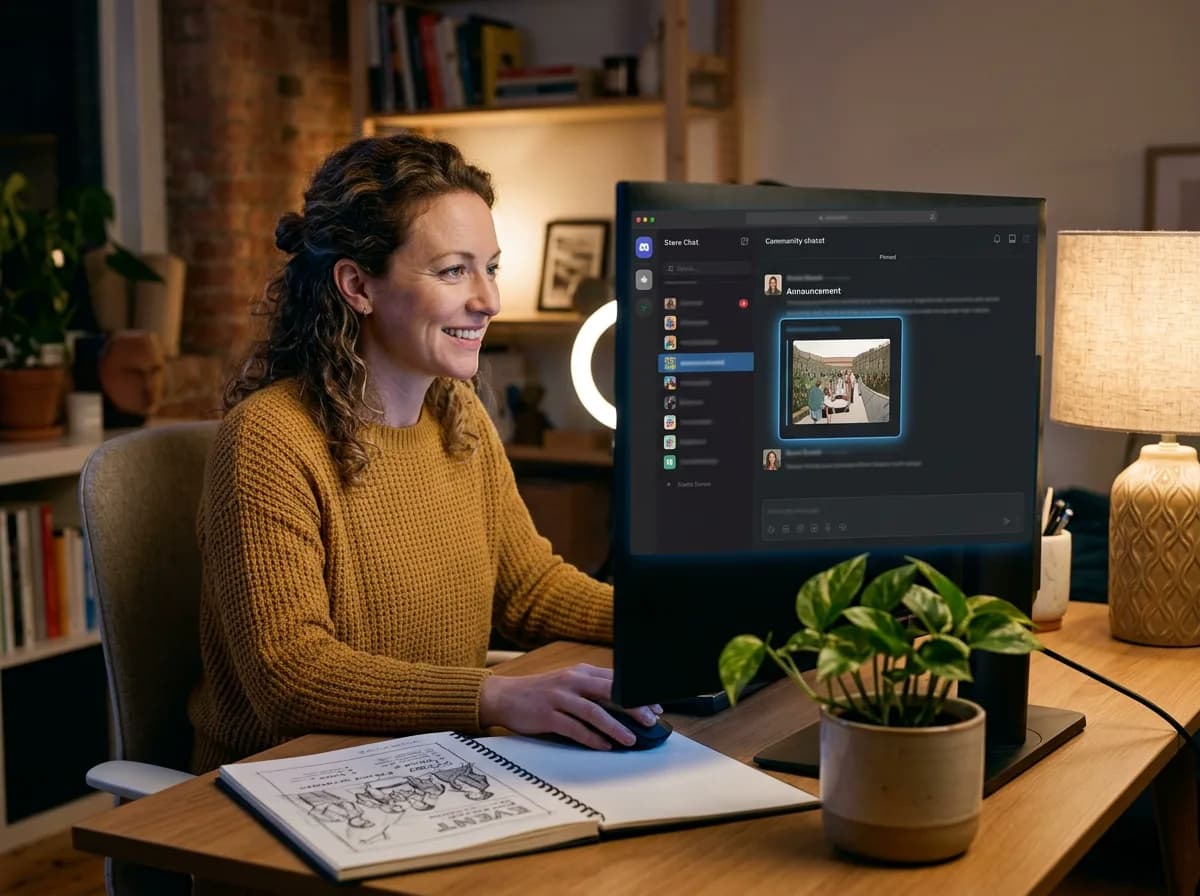
What you can do
- Schedule an announcement to a channel, or send it now
- Post to forum channels: each post opens its own thread
- Add images and links, like any post
- Edit or delete it later from Hivenza
Good to know
- Each connection posts to the channel you pick when you authorize Hivenza
- You need permission to manage the server's webhooks
- Discord shares no numbers, so Discord posts aren't counted in analytics
Included in the Agency plan.
How teams use it
- Drops and releases
- A product drop goes out on TikTok, Instagram and the server’s #announcements at the same minute.
- Events
- Reminders for streams, meet-ups and live sessions are scheduled a day and an hour before.
- Forum updates
- Each patch note or update opens its own thread in a forum channel, ready for the community’s replies.
- One calendar
- The community manager sees Discord beside every other network, so nothing clashes or repeats.
Connect Discord in a minute
- 1
Open Connections
In Hivenza, go to Settings, then Connections, and choose Discord.
- 2
Pick the channel
Discord asks which server and channel Hivenza may post to. Pick them and authorize.
- 3
Post
Discord now appears in Where it goes on every new post.
Questions
Does it work with forum channels?
Yes. Each post opens a new thread, and edits and deletes reach that thread.
Can I post to several channels?
Yes. Connect once per channel; each one is its own account in Hivenza.
Which plan includes Discord?
The Agency plan, together with Slack and Microsoft Teams.
Keep your Discord in step with every launch